CSE15L-Lab-Reports
Lab Report 3
Steamlining ssh Configuration
- Show your .ssh/config file, and how you edited it (with VScode, another program, etc)
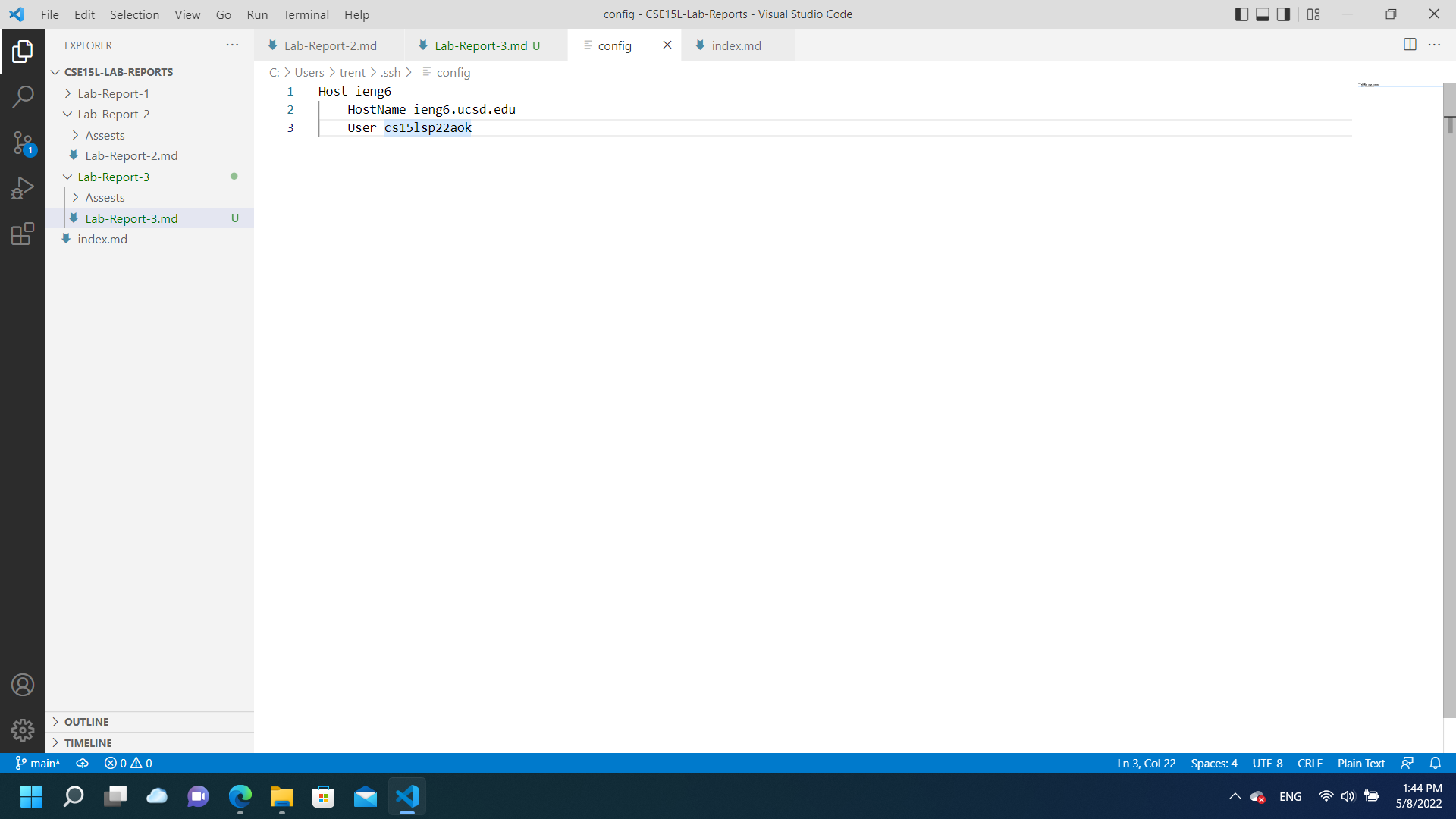
This is my .ssh config file. I opted to just follow the directions and leave the host name as ieng6.
- Show the ssh command logging you into your account using just the alias you chose.
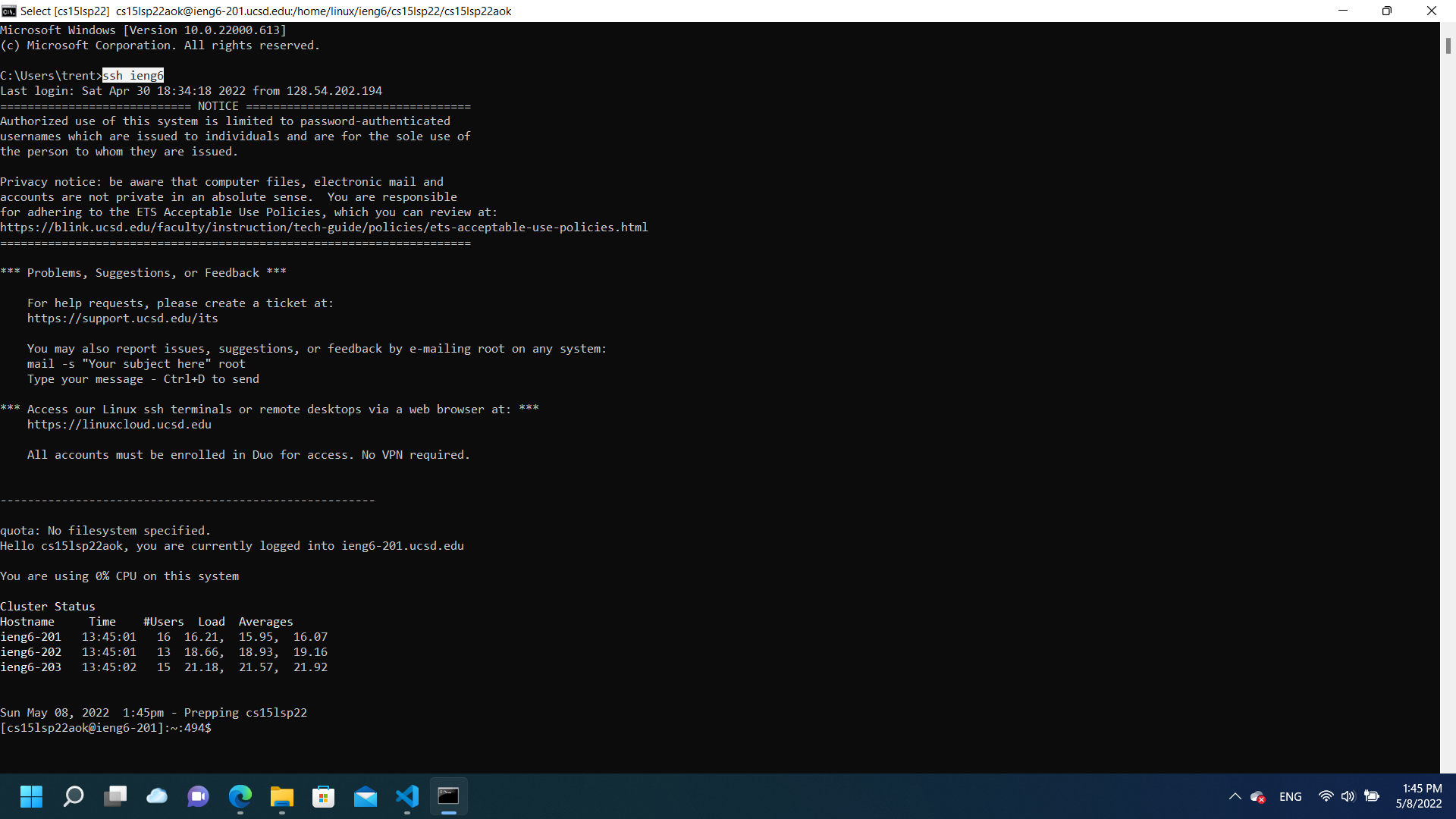
This is me using my preconfigured host to ssh into my ieng6 account. It worked perfectly upon its first implementation.
- Show an scp command copying a file to your account using just the alias you chose.
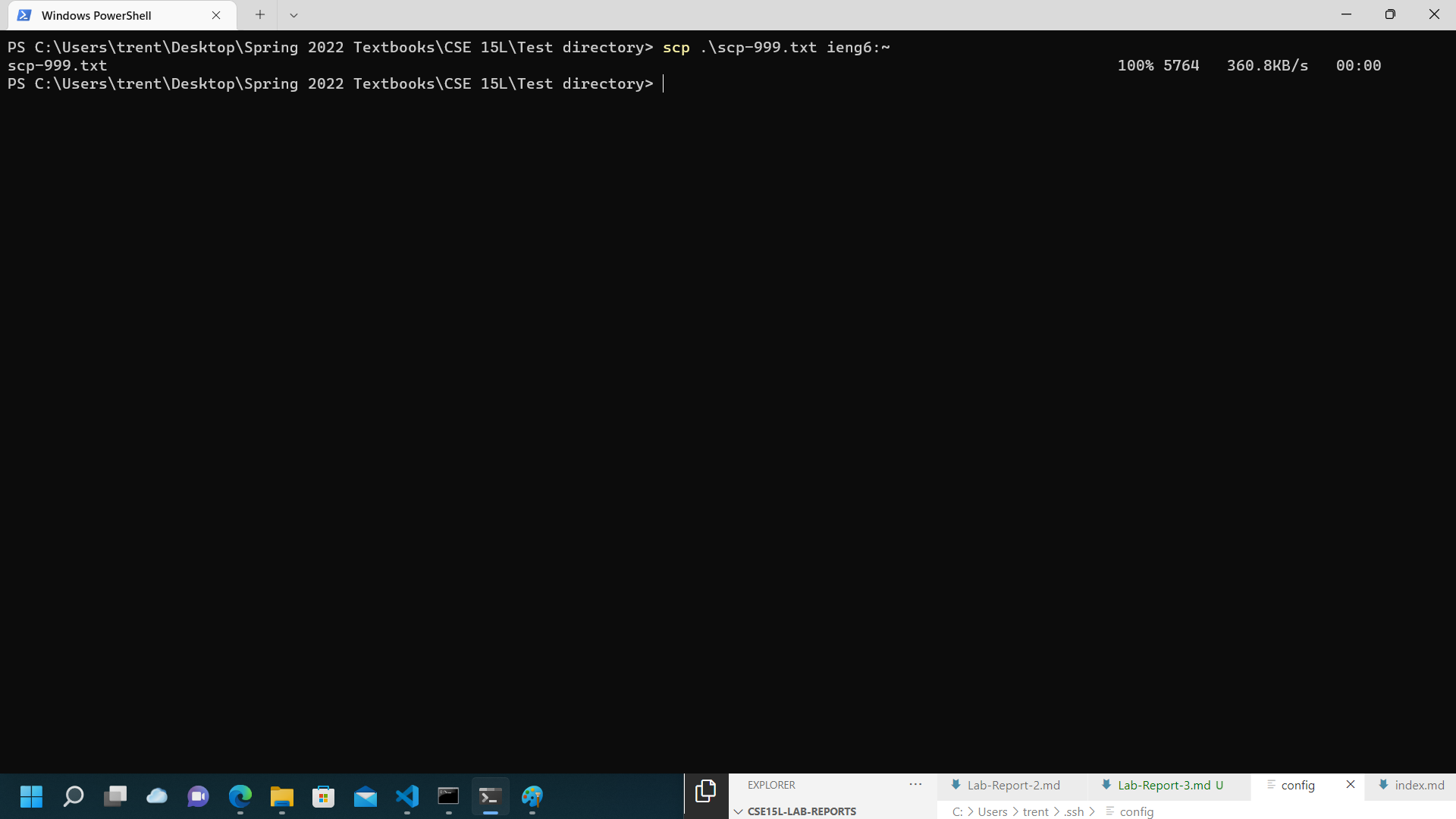
This is me using the scp command with my new custom hostname to transfer a file into my ieng6 home directory. I also learned that I could use ~ for my home directory path as long as I provided my ieng6 account correctly.
Setup Github Access from ieng6
- Show where the public key you made is stored on Github and in your user account (screenshot).
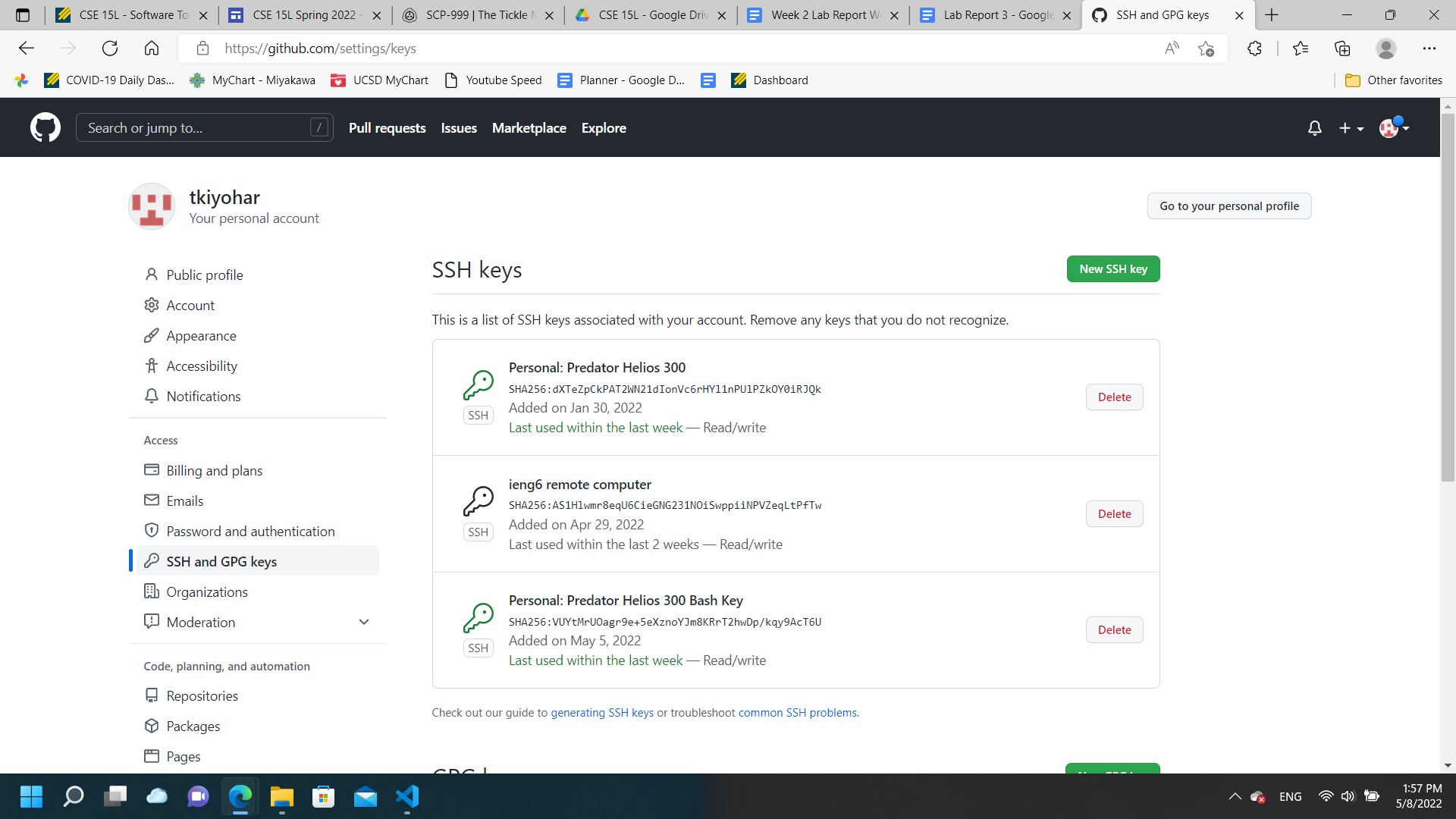
This is my remote ssh public key on Github (the key labeled “ieng6 remote computer”). I also have two other ssh public keys for both my laptop and its bash environment (having 2 keys is probably of poor form/an inefficient solution, but it works).
- Show where the private key you made is stored on your user account (but not its contents) as a screenshot.
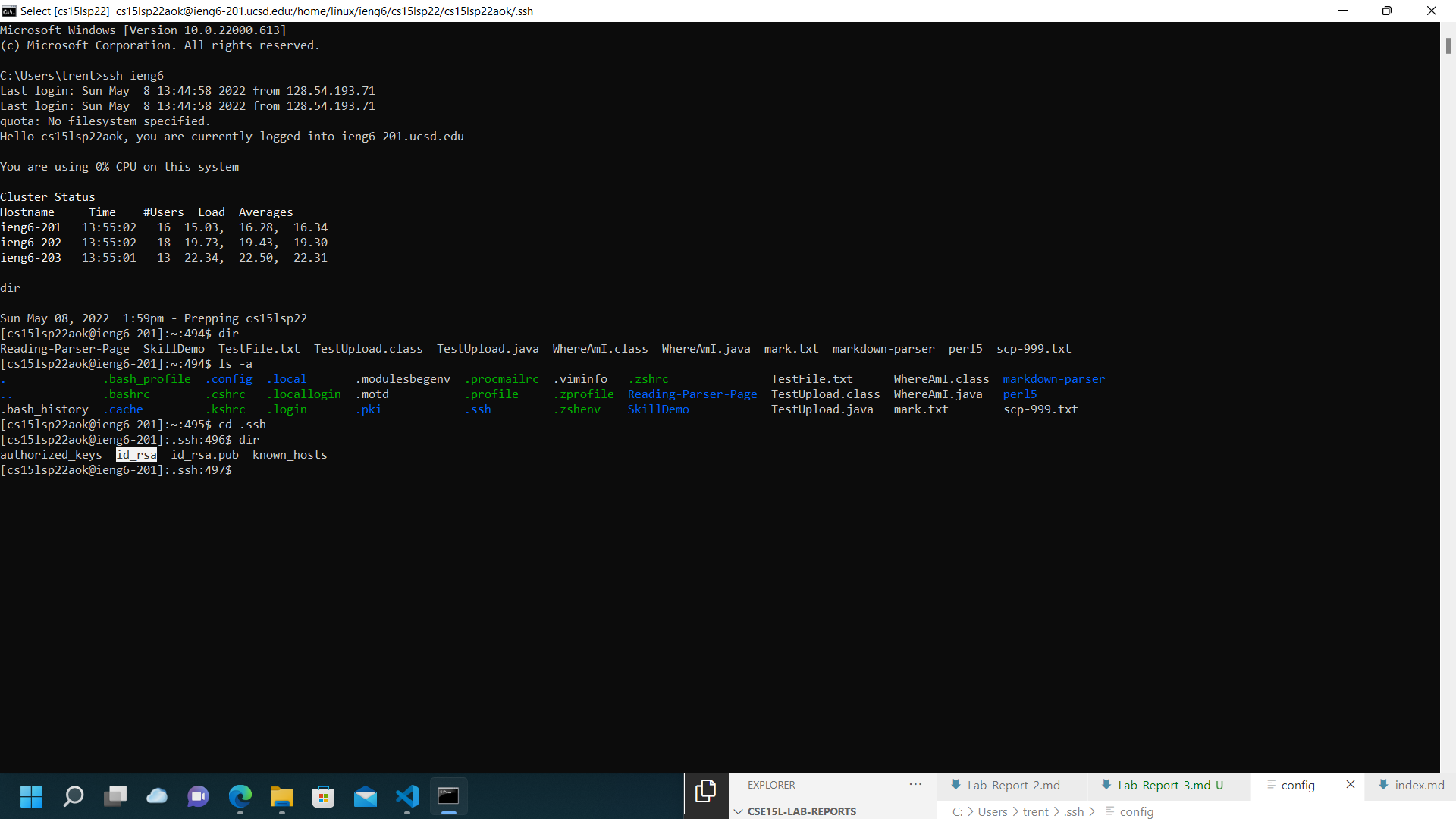
This is where my private key is located in my remote ieng6 account (in its .ssh folder). I ended up using a RSA key instead of an id_ed25519 key for authentication because it allowed me to eliminate some possible error causes while I was troubleshooting it.
- Show running git commands to commit and push a change to Github while logged into your ieng6 account.
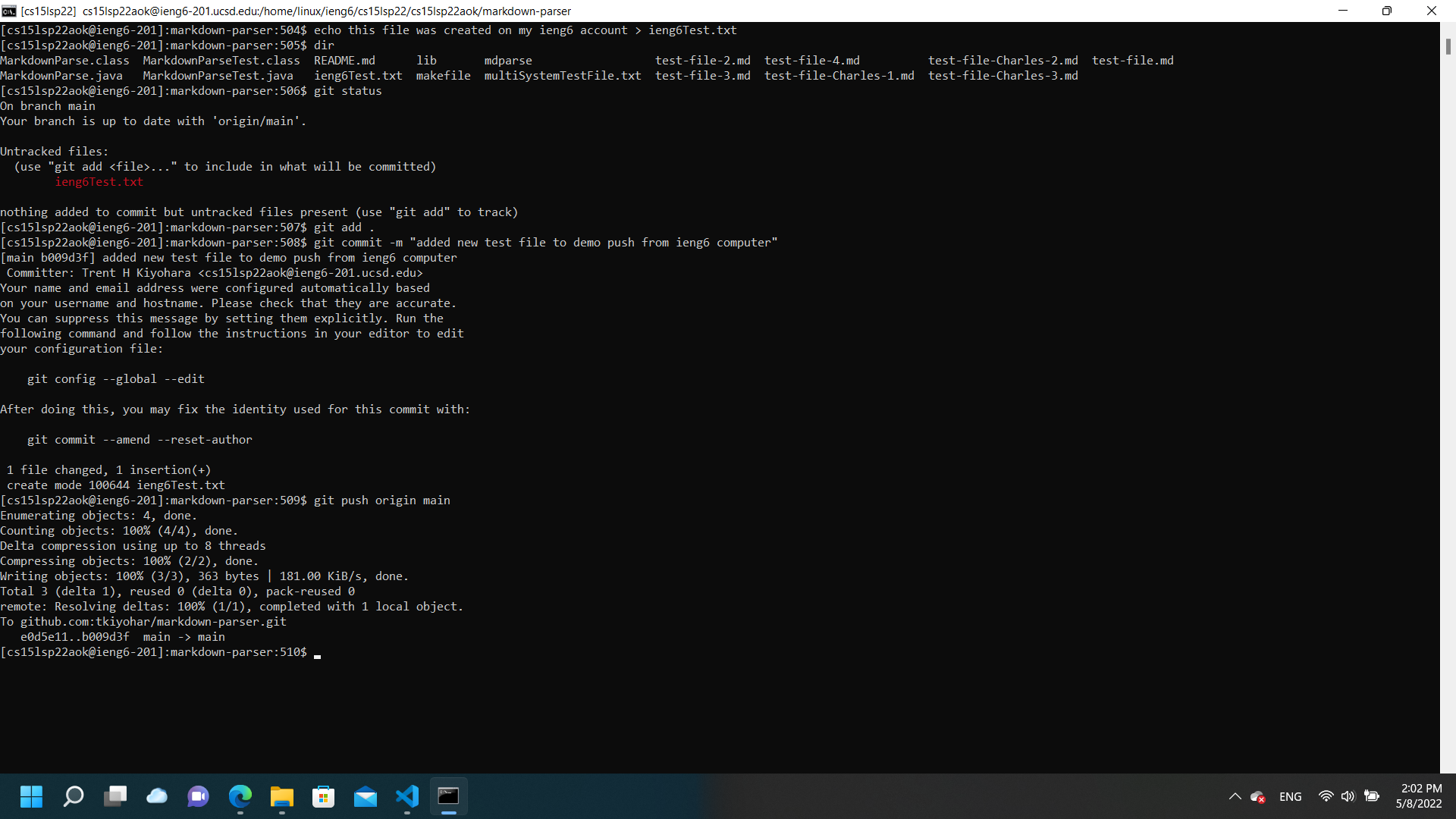
This is me pushing a new test file to my markdownparser repository on Github. As you can see from the code, there were no errors completing this task.
- Show a link for the resulting commit.
https://github.com/tkiyohar/markdown-parser/actions/runs/2290842338
Copy whole directories with scp -r
- Show copying your whole markdown-parse directory to your ieng6 account.

This is me “scp”-ing my entire markdown-parser directory to my remote ieng6 account. As evidenced by my terminal output, it worked without a hitch.
- Show logging into your ieng6 account after doing this and compiling and running the tests for your repository.

This is me compiling and running my tests on my ieng6 account. To make compiling and testing easier, I opted to just use the make file I wrote in lab 6 to run them.
- Show (like in the last step of the first lab) combining scp, ;, and ssh to copy the whole directory and run the tests in one line.
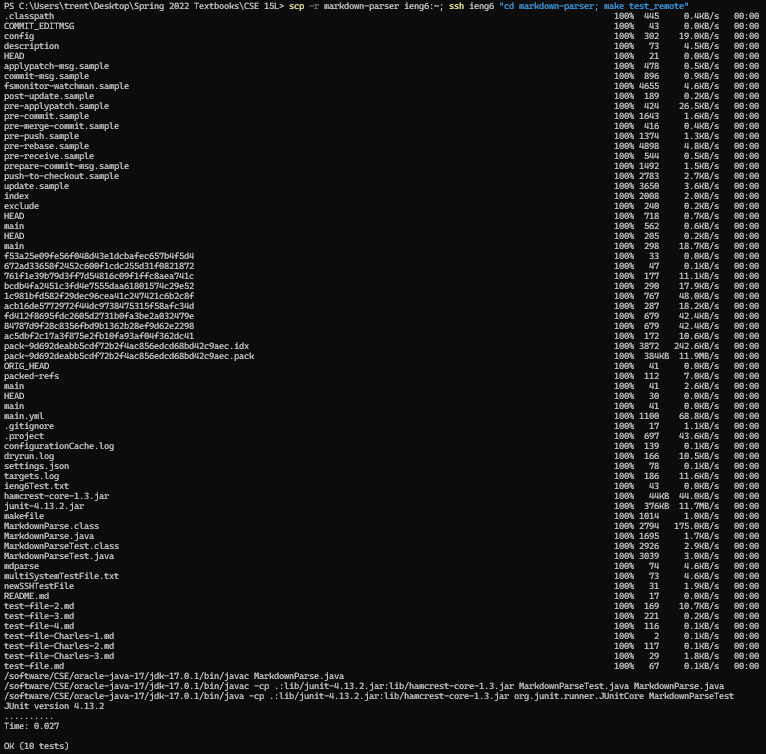
This is me finally successfully combining ssh and scp to transfer and run my markdownparser tests on the ieng6 machine. I accomplished this by adapting my makefile to run java and javac using the paths provided in Piazza post @444. Here is the command I ran:
scp -r markdown-parser ieng6:~; ssh ieng6 "cd markdown-parser; make test_remote"